How do you add the Arabic keyboard on iPhone?
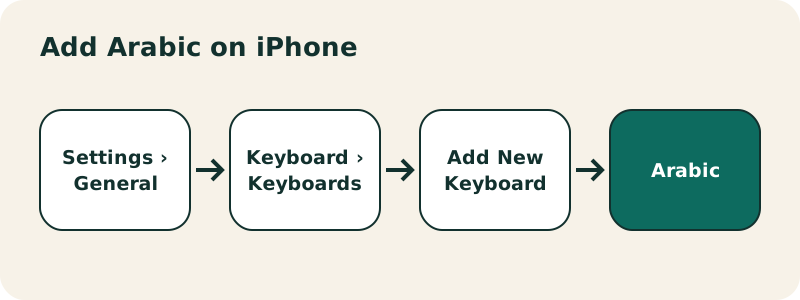
- Open the Settings app.
- Tap General, then Keyboard.
- Tap Keyboards, then Add New Keyboard.
- Scroll to Arabic and tap it. It now appears in your list of keyboards.
Apple describes the key step like this:
“Add a keyboard: Tap Add New Keyboard, then choose a keyboard from the list. Repeat to add more keyboards.”
Nothing to download from the App Store: the Arabic keyboard ships with iOS. Your iPhone's language stays the same; Apple notes that adding a keyboard for another language also adds that language to your Preferred Languages list, which only affects how apps and websites that support it are displayed if you move it to the top.
How do you switch between English and Arabic on iPhone?
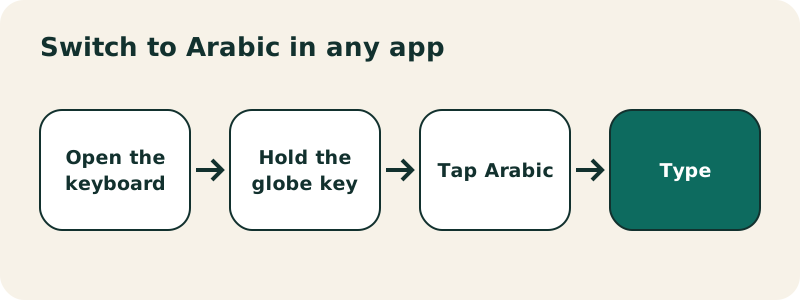
- Touch and hold the globe key (or the emoji key, depending on how many keyboards you have) at the bottom left of the keyboard, then tap Arabic.
- Apple's guide also lists other ways to switch, for example between the Magic Keyboard and the onscreen keyboard.
The Arabic keyboard types from right to left automatically, and the text field aligns to the right in apps that support it, such as Messages, Mail, Notes and WhatsApp.
What does the iPhone Arabic keyboard look like?
The iPhone's Arabic keyboard is a phone layout, not a copy of the computer one. Letters are arranged over three rows, numbers and punctuation sit on a second page, and some characters are reached with a long press. Because the exact arrangement can change between iOS versions, the simplest way to learn it is to type a few words and watch the keys.
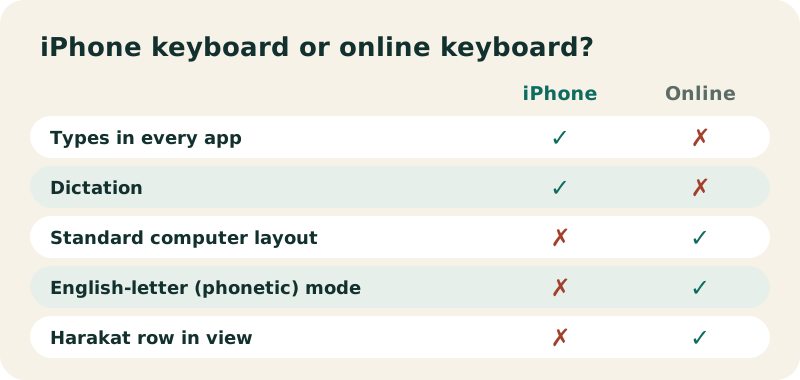
If you already know the computer layout, the online Arabic keyboard uses the standard Arabic (101) arrangement, which is the one you will find on Windows PCs and physical Arabic keyboards.
How do you type harakat on iPhone?
Short vowel marks are not on the main keys of phone keyboards; they are usually reached through secondary keys or long presses, and their place varies with the iOS version. Apple does not publish a key-by-key list, so try holding the keys near alif and the punctuation keys. For a vowelled phrase, it is often quicker to tap it out on our Arabic keyboard with harakat (it works in Safari) and paste it into your app.
Can you type Arabic with English letters on iPhone?
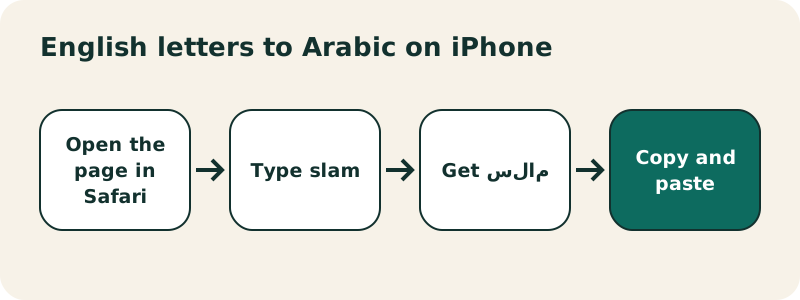
Not with the built-in keyboard, which types Arabic letters directly. Our English to Arabic keyboard fills that gap: open it in Safari, type slam or 3rby with your usual English keyboard, and it writes سلام or عربي. Copy and paste the result into Messages, WhatsApp or Instagram.
Can you dictate in Arabic on iPhone?
Apple says you can add keyboards "for writing or using Dictation in different languages". Once the Arabic keyboard is active, tapping the microphone key dictates in Arabic, if Dictation is available for your Arabic variety and your region. Dictated text has no harakat.
Does the Arabic keyboard change your iPhone's language?
No. A keyboard and a language are separate settings on iPhone. Adding the Arabic keyboard lets you type Arabic; your menus, Settings and Siri stay in English. Apple explains the one side effect:
“If you add a keyboard for a different language, the corresponding language is automatically added to the Preferred Languages list.”
That list only matters for apps and websites that offer several languages: they use the first language in the list that they support. As long as English stays at the top (Settings › General › Language & Region), nothing changes.
How do you remove or reorder keyboards?
- Remove: Settings › General › Keyboard › Keyboards, swipe left on Arabic, then tap Delete.
- Reorder: same screen, tap Edit and drag the keyboards into the order you want.
- Change the layout of a keyboard: tap the language in that list, then choose an alternative layout if iOS offers one.
What if Arabic does not appear or looks wrong?
- No globe key: you have only one keyboard. Add Arabic again and check it is listed under Keyboards.
- Arabic text aligns left: the app does not set the direction by itself. Start the line with an Arabic word, or paste the text from an app that handles it.
- Separated letters: the app or website does not support Arabic shaping. Try another app.
- Wrong letters in an English word: you are still on the Arabic keyboard. Switch back with the globe key.
How do you send Arabic typed on this site to an iPhone app?
- Type your text in the Arabic keyboard or the English to Arabic keyboard.
- Tap Copy under the text box.
- Open Messages, Mail, Notes or any app, touch and hold in the text field and tap Paste.
For WhatsApp, the WhatsApp button under the text box opens WhatsApp with your Arabic text ready to send. Your draft is also kept on the page between visits, so you can prepare a longer message in several sittings.
Is there an Arabic keyboard for iPhone without installing anything?
Yes: the online Arabic keyboard on this site works in Safari and Chrome on iPhone. Tap the on-screen keys, and tick "use only this keyboard" to keep the iPhone keyboard out of the way. It is handy on a borrowed phone, or when you need a rare character such as ڤ or a dagger alif. Learning the letters themselves? See the Arabic alphabet.
Frequently asked questions
How do I get the Arabic keyboard on my iPhone?
Settings › General › Keyboard › Keyboards › Add New Keyboard › Arabic.
Is the iPhone Arabic keyboard free?
Yes. It is part of iOS; nothing to buy or download.
How do I switch to Arabic while typing?
Touch and hold the globe or emoji key, then tap Arabic.
Will adding Arabic change my iPhone language?
No. Your iPhone stays in English. Arabic is added to the Preferred Languages list, but it only takes effect if you move it to the top.
How do I delete the Arabic keyboard?
In Settings › General › Keyboard › Keyboards, swipe left on Arabic and tap Delete.
Can I type Arabic vowels (harakat) on iPhone?
Phone keyboards hide them on secondary keys. If you cannot find one, type the vowelled text on our harakat keyboard in Safari and paste it.
Can I type Arabic in English letters on iPhone?
Use our English to Arabic keyboard in Safari: slam becomes سلام. Then copy and paste.
Does it work on iPad too?
iPadOS has a similar Keyboard setting; Apple documents it in its iPad user guide. The online keyboard on this site also works in Safari on iPad.
Related pages
Arabic keyboard — Free online Arabic keyboard: type Arabic with your QWERTY keyboard or by tapping the keys, then copy the text anywhere.
See also:
Sources
- Add or change keyboards on iPhone — Apple
- Arabic alphabet — Wikipedia